

Can You Run a Golf Simulator on a Laptop?
Discover how to run a golf simulator on a laptop, including system requirements, laptop features, software tips, and setup advice for smooth operation.
COMPUTERS
Golf Tech Buzz Editorial Team - Led by AJ “Buzz” Eichman
5/28/20268 min read
If you’re like me—a guy who’s tried just about every gadget to bring the golf course indoors—then you’ve probably wondered, “Can I just run a golf simulator on my laptop, or do I really need a full-blown PC setup?” Here’s the real talk: yes, you can run a golf simulator on a laptop, but it’s not as simple as plugging in some sensors and swinging away in your living room. The devil’s in the details, and I’ve seen guys try this and totally miss the mark because they skimped on the specs or ignored the setup needs.
If you’re starting to build out your indoor setup, our Golf Sim Computers guide and Golf Simulator Computers — Laptop vs Desktop breakdown both help explain what kind of hardware actually matters for modern simulator software.
So, let’s break down what you really need to know before investing your time—and your hard-earned cash—into a laptop golf simulator setup. I’ll walk you through the system requirements, the perfect laptop features to look for, software compatibility, and some common pitfalls to avoid. Think of this as your go-to guide, straight from the guy who’s put in the hours running winter leagues and testing gear that actually works.
Quick Verdict
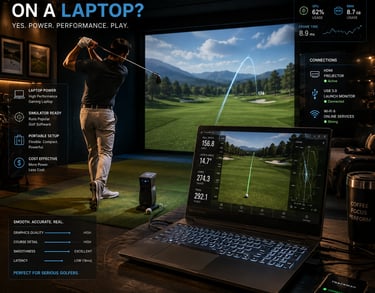
Most modern laptops with at least 8GB RAM and a dedicated graphics card can run popular golf simulation software smoothly.
Processor speed, USB or HDMI ports, and RAM matter just as much as the GPU for a good simulator experience.
Some golf simulators are cloud-based, so solid internet is a bonus; others run offline no problem.
Upgrading your current laptop’s RAM or SSD can help, but if the GPU is weak, you’ll likely need a new machine.

What Is a Golf Simulator and How Does It Work?
Before we geek out on laptops, let’s get on the same page about golf simulators themselves. A golf simulator isn’t just some fancy video game—it’s your golf course, indoors. Using hardware like launch monitors, cameras, and sensors paired with software, these systems track your swing, ball speed, launch angle, spin rate, and more. The software then translates those numbers into a virtual golf course showing your shot in real time.
The goal here isn’t just entertainment; it’s data-driven practice. The tech analyzes your swing mechanics and ball flight to help you improve, all from your garage or basement. But to do this right, your computing device—be it laptop or desktop—needs to handle a lot of real-time data processing and render detailed 3D graphics without lag.
Laptop Compatibility: What to Look For
Okay, here’s the deal. Not every laptop is cut out to run golf simulator software. I’ve seen guys try to run these sims on bargain-basement laptops with integrated graphics, and the experience was clunky at best—frame drops, input lag, and inaccurate readings. So if you’re looking to run golf simulators on a laptop, here’s what you need to keep an eye on:
Processor: Aim for a modern Intel i5/i7 or AMD Ryzen 5/7 or better. These CPUs keep the software responsive and process launch monitor data quickly. Anything older might cause stutters.
Memory (RAM): Minimum 8GB, though 16GB+ is ideal to keep things smooth, especially if you’re multitasking or running high-end software.
Graphics Card (GPU): This is your most critical piece. Integrated graphics (Intel UHD, AMD Vega) will struggle. Get a laptop with a dedicated NVIDIA GeForce GTX/RTX or AMD Radeon GPU. This means crisp visuals and smooth playback on the virtual courses.
If you want to skip the guesswork entirely, our guide to the Best Laptops for Golf Simulators breaks down some of the strongest portable systems currently available for GSPro, E6 Connect, and garage simulator setups.
Ports: You’ll need USB 3.0 or higher ports to connect launch monitors, cameras, and sensors. HDMI or DisplayPort is a must for hooking up secondary displays or projectors in your simulator setup.
Display: A high-resolution screen with a fast refresh rate helps, especially if you’re looking at shot details or replay angles.
Operating System: Most golf simulation software runs best on Windows, though a few offer Mac support with limited features. Make sure your laptop OS matches the software requirements.
System Requirements for Golf Simulation Software
Different programs have different needs, but here’s the baseline checklist I usually recommend:
Processor: Quad-core 2.5GHz or higher (Intel i5/Ryzen 5 or better)
RAM: Minimum 8GB, 16GB+ preferred
GPU: Dedicated graphics card with at least 2GB VRAM (NVIDIA GTX 1050 or better)
Storage: SSD recommended for faster loading times
Ports: USB 3.0 for launch monitors, HDMI for external display
OS: Windows 10/11 (64-bit) mostly; Mac compatibility varies by software
Internet: Needed only for cloud-based simulators or updates, not mandatory for offline sims
If you're eyeing fancy simulators that mimic course environments with ultra-realistic graphics, be prepared to upscale your laptop specs accordingly. Sometimes that means shelling out for gaming laptops built to handle big loads, which can be on the pricier side, but worth every penny if you want that seamless feel.
If you’re still unsure what kind of hardware you actually need, our breakdown on What PC Specs Do You Need for a Golf Simulator? explains how CPU, GPU, RAM, and storage impact simulator performance.
For golfers building a permanent indoor setup, it may also be worth looking at the Best Computers for Golf Simulators if you want more upgrade flexibility and stronger long-term performance than most laptops can offer.
Setting Up a Golf Simulator at Home with a Laptop
Once you’ve got the laptop sorted, the next piece of the puzzle is the physical setup. You’re not just plugging in your laptop and swinging blindly—you need space and hardware working together.
Space: Clear out a room or garage with at least 10 feet of width and 15 feet in length to swing comfortably and safely. Ceiling height is critical too; low ceilings can make full swings tricky.
Sensors and Launch Monitors: These connect to your laptop via USB or Bluetooth. Brands like SkyTrak, FlightScope Mevo+, or OptiShot are popular and generally laptop-friendly. Confirm compatibility before purchase.
Display Options: You can use your laptop screen, but for the full immersive experience, connect to a large monitor, projector, or TV via HDMI. It’s game-changing to see your ball fly across a big screen like you’re actually outdoors.
Lighting: Consider lighting conditions. Too much glare or dim light can fool sensors or ruin visuals on the screen.
Software Installation: Most software like E6 Connect, The Golf Club, or TGC require installation and sometimes account setup. Choose software that plays well with your laptop’s OS and hardware.
Popular Golf Simulator Software for Laptops
Here’s a quick rundown on some go-to golf simulator software that runs well on laptops:
E6 Connect: Highly realistic courses and a solid multiplayer experience. Needs a good GPU and CPU to run sweetly.
The Golf Club (TGC) Series: Known for wide course options and detailed shot physics. More forgiving on specs but still benefits from dedicated graphics.
OptiShot 2: Budget-friendly and decent for beginners. Runs fine on mid-range laptops without dedicated GPUs.
WGT Golf: Cloud-based with good visuals, but strong internet connection is a must.
SkyTrak Software: Pairs with its hardware to deliver accurate data and solid course play but leans on your laptop’s power for smooth operation.
Common Mistakes to Avoid When Using a Laptop Simulator
Here’s what I’ve seen plenty of sim guys screw up:
Assuming any laptop will run the software. Don’t just eyeball specs—check minimum system requirements of the golf simulation software first.
Ignoring the need for dedicated GPUs. Integrated graphics won’t cut it if you want smooth, realistic graphics and solid shot data.
A weak graphics card is one of the fastest ways to ruin simulator performance, which is why understanding What GPU Do You Need for a Golf Simulator? can save you from expensive upgrade mistakes later.
Overlooking the importance of USB/HDMI ports. Not having enough or wrong type of ports kills your setup options.
Ignoring physical space needs. You can have the best laptop in the world, but if your swing space sucks or sensors aren’t placed right, you’re dead in the water.
Forgetting OS compatibility. Macs are often an afterthought or have limited support. If you have a Mac, verify software compatibility upfront.
Expecting flawless performance on low-end laptops. You’ll likely get input lag, stuttering visuals, or even crashes—bad news for your practice swing.
Upgrading Your Laptop for Better Golf Simulator Performance
If your current laptop isn’t playing nice with your golf simulator, but it’s otherwise decent, there are a few upgrades worth considering before tossing it out:
Add more RAM: 16GB is a sweet spot that can improve responsiveness.
Swap out the hard drive for an SSD: Faster read/write speeds reduce software load times and improve stability.
External GPU (eGPU): Some laptops support eGPUs via Thunderbolt 3 ports, letting you connect a desktop-grade GPU externally. This is a niche option but can bring laptop gaming to a new level.
But here’s the rub: if your laptop’s GPU is integrated and the processor is underpowered, these hacks only go so far. Sometimes the best move is to splurge on a newer, gaming-focused laptop optimized for this kind of work.
FAQs about Running Golf Simulators on Laptops
Can a basic laptop run a golf simulator?
If it’s a budget laptop with integrated graphics and less than 8GB RAM, expect a frustrating experience. You’d be better off upgrading hardware or choosing an entry-level simulator that’s less demanding.
What are the minimum system requirements for golf simulation software?
Typically an Intel i5 or Ryzen 5 processor, 8GB RAM, dedicated GPU with 2GB+ VRAM, and Windows 10/11 OS. Check specific software specs before buying.
Which golf simulation software works best on laptops?
E6 Connect and The Golf Club Series are top picks for laptops with decent specs. OptiShot is better for budget setups.
Can I use a Mac laptop for golf simulators?
Some software supports Mac but with limited features. Windows laptops offer better compatibility and performance overall.
Do I need an internet connection to run a golf simulator on my laptop?
Not always. Some software is cloud-based and needs internet, but many run fully offline once installed.
What peripherals do I need to connect to my laptop for golf simulation?
Launch monitor, swing sensors or cameras, external display (monitor/projector), and maybe a net or impact screen for safety.
How much space is needed for a home golf simulator setup?
At least 10x15 feet with room for a full swing and clearance around sensors. Ceiling height 8 feet or more recommended.
Can upgrading my laptop improve golf simulator performance?
Adding RAM or an SSD helps, but a weak GPU is a bottleneck you can’t upgrade internally on most laptops.
Final Thoughts
Look, running a golf simulator on a laptop isn’t a pie-in-the-sky fantasy—it’s absolutely doable, and I’ve watched plenty of guys dial in setups that give them killer practice sessions indoors. Just don’t cut corners or settle for gear that can’t keep up. Enough RAM, a solid processor, and a dedicated GPU are your trifecta for success. Add the right software and enough physical room to swing safely, and you’ve got a fully functional golf simulator on the go.
If you’re serious about making your golf simulator matter, treat your laptop like the engine it is—don’t expect to run a Formula 1 race car on a lawn mower. Upgrade when you need, or go all in on a gaming laptop that can handle the heat. Either way, once you’re dialed in, there’s no better feeling than hitting perfect shots inside when it's freezing outside. Now go get your golf fix—rain, shine, or snow.
© 2026 GolfTechBuzz. All rights reserved.
Golf Tech Buzz
Performance Through Data
Practical guides, real-world setups, and unbiased comparisons for golfers building smarter practice environments.
General Inquiries: