

Can Your PC Run FSX Play?
Discover if your PC meets the FSX Play system requirements to run this advanced golf simulator smoothly and enjoy realistic gameplay.
COMPUTERS
Golf Tech Buzz Editorial Team - Led by AJ “Buzz” Eichman
5/28/20266 min read
If you’re like me, when you first heard about FSX Play, you probably thought, “Great, another golf simulator—does my PC even stand a chance?” Look, running golf sim software isn’t just about having a decent machine; FSX Play needs a particular set of hardware and software muscle under the hood to keep things smooth—no lag, no crashes, just crisp shots and realistic greens. So, if you’ve ever wondered, “Can FSX Play run on my PC?” or if your setup will choke trying to keep up, you’re in the right spot.
If you’re still building your overall simulator setup, our Golf Sim Computers guide and Golf Simulator PC Requirements by Software breakdown both help explain what kind of systems modern golf simulator software actually needs.
Here’s the deal: FSX Play is more than just cool visuals and swing tracking; it demands a reasonably powerful rig. I’ve seen guys try this on low-end laptops and get frustrated with all the hiccups. You don’t want that vibe — especially if you’re serious about your game or just hate getting kicked out mid-swing.
Quick Verdict
Minimum specs: quad-core CPU, 8GB RAM, dedicated GPU, Windows 10 or newer.
Recommended specs: multi-core CPU (recent generation), 16GB RAM, mid-to-high tier GPU for buttery graphics.
An SSD is your best friend to knock down load times and keep sensor responsiveness on point.
Don’t sleep on your physical setup space—sensor placement and cable management matter for consistent tracking.
Understanding FSX Play and Its Technology
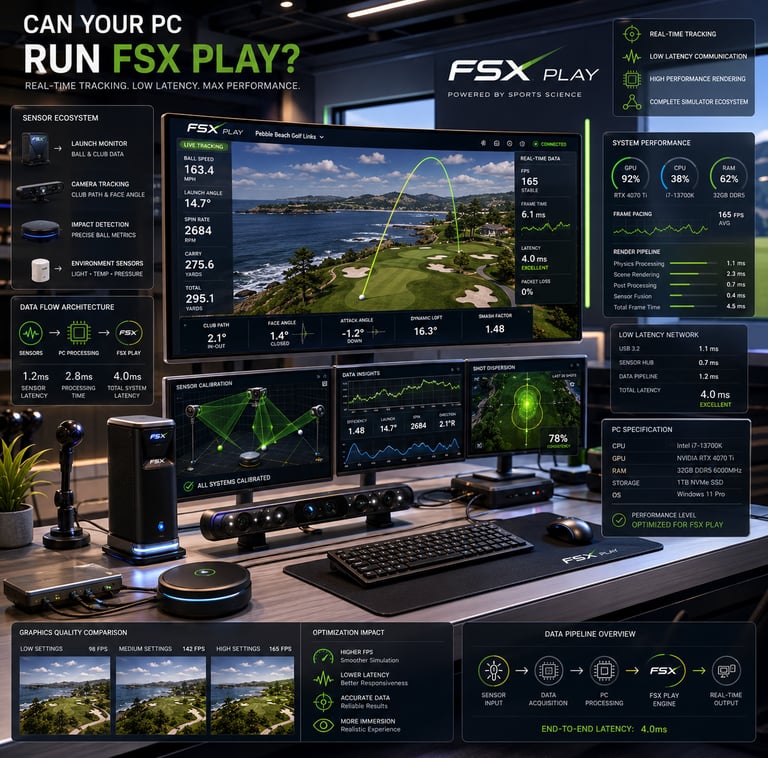
FSX Play isn’t your run-of-the-mill golf game. It integrates real-time data from sensors capturing your club and ball movement, feeding it into physics calculations and high-res visual rendering. That means the CPU has to crunch numbers fast, while the GPU handles lush graphics without dropping frames.
It relies on IR or camera-based sensors connected via USB to your PC, so your system has to keep up with low-latency communication. If you’re thinking, “Can FSX Play run on a laptop or does it demand a full desktop?” — the answer’s both, but your laptop needs to be up to snuff or you’ll be battling performance drops.
Minimum and Recommended PC System Requirements
Let’s break down what minimum means here: A quad-core processor clocked decently, 8 gigs of RAM to keep things from stuttering during simulations, and a dedicated graphics card — integrated chips just don’t cut it. Windows 10 64-bit or newer is usually the baseline OS since FSX Play leverages the latest DirectX libraries for smooth rendering.
Now, if you want my opinion — and you came here looking for no fluff — aim higher than minimum. A modern multi-core CPU, 16GB of RAM, and a GPU somewhere in the mid-to-high tier make the experience buttery smooth. You’ll get better graphics, less latency, and the system won’t hiccup if you run background apps, streaming software, or your favorite golf forums during play.
If you’re trying to understand how hardware tiers impact simulator performance, our guide on Minimum vs Recommended Golf Simulator PC Specs breaks down what entry-level versus stronger systems actually feel like during gameplay.
For golfers wanting a portable setup that can still handle demanding simulator software, our Best Laptops for Golf Simulators guide highlights some of the strongest gaming laptops currently available for FSX Play and garage simulator setups.
Hardware Components: CPU, GPU, RAM, and Storage
CPU
Think of the CPU as your golf caddie—handling the physics calculations, sensor inputs, and smooth gameplay. FSX Play benefits from multiple cores and higher clock speeds. A quad-core CPU might scrape by but expect some limits. For serious sim hours, recent Intel i5/i7 or AMD Ryzen 5/7 chips do the heavy lifting better.
GPU
A dedicated graphics card isn’t optional here. The detailed courses, real-time shadows, animations—all need proper rendering. Integrated GPUs are great for emails, but FSX Play? Not so much. A solid NVIDIA GTX 1660 or AMD RX 5600 XT and up will keep things visually stunning without tanking FPS.
RAM
Less than 8GB and you’ll feel the pain. You want at least 8GB for minimum, but 16GB gives you breathing room. More RAM means the game loads faster, handles multitasking better, and reduces stutter—especially important if you’re running streaming or analysis software alongside FSX Play.
Storage
With load times and responsiveness in mind, SSDs beat traditional HDDs hands down. Installing FSX Play on an SSD shaves off the wait times and keeps sensor communications snappy.
If you’re building around maximum long-term performance and upgrade flexibility, our Best Computers for Golf Simulators guide breaks down some of the strongest desktop systems currently available.
Operating System and Software Compatibility
Windows 10 64-bit or higher is the name of the game here. FSX Play needs the latest DirectX or equivalent runtimes, so you’ll want to keep your OS and drivers updated. Running an older version might mean missing out on performance gains or having weird crashes.
And don’t get cute with unsupported OS’s like Mac or Linux without verified workarounds—they’re simply not built to handle FSX Play’s real-time demands natively.
Setting Up Your PC and Physical Space for FSX Play
Okay, PC specs matter, but here’s something you don’t always think about: space. FSX Play sensors need line-of-sight. Cables must run cleanly, USB ports should be easily accessible, and your play area needs enough room so your swing isn’t hindered.
You can’t put your sim in a cramped corner with cluttered cables and expect flawless tracking. Also, consider ventilation. PCs working hard during your rounds generate heat. Overheating can throttle performance and cause sudden crashes.
Tips for Optimizing Performance and Avoiding Common Pitfalls
I’ve been there, tested all this: performance issues often boil down to simple fixes.
Close unnecessary background apps. Streaming Spotify while running FSX Play + analysis software + Chrome tabs might be cool, but it’ll hurt your smoothness.
Update your GPU drivers regularly. New drivers often fix bugs and squeeze out more performance.
Keep your OS updated. New Windows updates often patch compatibility and security issues.
Consider upgrading to SSD if you feel load times dragging.
Monitor your system temps during play. If the PC’s cooking itself, adjust fan curves or clean dust from internals.
Common Mistakes to Avoid
Skimping on GPU: Trying to run FSX Play on integrated graphics leads to major lag, low FPS, and frustration.
Underestimating RAM: Less than 8GB is a bottleneck. Running other software alongside FSX Play needs even more.
Ignoring OS requirements: Operating on unsupported or outdated Windows versions adds headaches.
Neglecting sensor setup space: Poor placement causes tracking errors and inconsistent swing feedback.
Forgetting driver updates: Out-of-date graphics or USB drivers often cause crashes and weird glitches.
If you’re trying to balance portability, thermals, and long-term upgradeability, our The Best Laptops vs Desktops for Golf Simulators guide breaks down the biggest real-world differences between both setups.
Frequently Asked Questions About FSX Play PC Compatibility
What are the minimum PC specs to run FSX Play?
You’ll want at least a quad-core CPU, 8GB RAM, a dedicated GPU (something like a GTX 1050 or better), and Windows 10 64-bit or newer.
Can FSX Play run on a laptop or only desktop PCs?
It can run on both, provided the laptop meets the hardware specs. High-end gaming laptops usually work, but low-spec or ultrabooks typically lag badly.
Is a dedicated graphics card required for FSX Play?
Yes. Integrated graphics generally don’t have the horsepower to handle FSX Play’s detailed rendering and real-time processing.
What operating system versions support FSX Play?
Windows 10 64-bit and newer OS versions are supported. Keep your system updated for best compatibility.
Can FSX Play work with integrated graphics?
Technically, maybe, but expect poor performance and graphical glitches. A dedicated GPU is highly recommended.
How much RAM is necessary for smooth FSX Play performance?
Minimum 8GB RAM. For better multitasking and smoother gameplay, 16GB or more is ideal.
Does having an SSD improve FSX Play loading times?
Absolutely. SSDs reduce load times and improve game responsiveness, essential for sensor data handling.
What setup space is recommended for FSX Play sensors and hardware?
You need enough room to position the sensors with unobstructed views, roughly 6-10 feet in front or beside your swing area, plus clean cable runs and access to USB ports.
Conclusion
If you’re ready to get serious about your home golf simulator, making sure your PC isn’t holding you back is step one. FSX Play rewards setups that meet or exceed its recommended specs, so your game—and your swings—feel realistic and smooth. I’ve seen too many folks try to cut corners and end up frustrated by lag or sensor dropouts. Don’t be that guy.
Aim for a good multi-core processor, dedicated mid-tier GPU, enough RAM, and SSD storage if you can swing it. And don’t forget about the physical setup—where you place your PC and sensors can make or break your experience.
Bottom line: If you check these boxes, your PC will handle FSX Play like a champ, and you can spend your time perfecting drives instead of troubleshooting.
So fire up that sim, grab your favorite cigar, and get ready to crush some virtual fairways—your rig’s ready for it.
© 2026 GolfTechBuzz. All rights reserved.
Golf Tech Buzz
Performance Through Data
Practical guides, real-world setups, and unbiased comparisons for golfers building smarter practice environments.
General Inquiries: