
What Happens If Your PC Isn’t Powerful Enough for a Golf Simulator?
Discover the essential PC requirements for golf simulator success and how underpowered hardware impacts your virtual golf experience.
COMPUTERS
Golf Tech Buzz Editorial Team - Led by AJ “Buzz” Eichman
5/28/20267 min read
If you’re diving into the world of golf simulators—or maybe you’ve set one up already—you might be wondering just how much horsepower your PC needs to keep the virtual fairways lush and the gameplay smooth. This is where things get interesting because golf simulators aren't just about cool visuals; they need a finely tuned PC combo to simulate ball physics, swing analysis, and stunning 3D courses in real time. If your computer falls short on specs, you’re going to feel it—in the form of frustrating lag, choppy video, or even outright crashes.
If you’re still trying to understand simulator hardware overall, our Golf Sim Computers guide and Complete Golf Simulator Computer Guide both help explain what kind of systems modern golf simulator software actually needs.
So what exactly happens if your PC isn’t powerful enough for your golf simulator? And more importantly, how do you know what specs you really need? Let me overthink that for you so you don’t have to.
Quick Verdict
• A PC that doesn’t meet the recommended specs for golf simulator software will lead to lag, stuttering, slow input response, and potentially frequent crashes.
• Graphics card (GPU) performance is critical—it handles the heavy lifting for smooth, realistic course visuals.
• Upgrading CPU, RAM, or switching to an SSD often provides noticeable improvements in responsiveness and load times.
• If hardware upgrades aren’t possible, lowering graphic settings can help mitigate lag but at the cost of visual quality.
Understanding PC Requirements for Golf Simulators
Golf simulators are a fascinating blend of hardware and software designed to simulate the golfing experience indoors. Whether you’re using a launch monitor, infrared sensors, or high-speed cameras, these inputs feed data into your PC, which then renders the virtual environment and ball flight in real time. This means your computer isn’t just running some static screens—it's crunching physics equations, processing swing data, and rendering detailed 3D graphics simultaneously.
Most golf simulator software will publish both minimum and recommended PC requirements. The minimum specs might get you in the door, but the recommended specs are where you’ll start having actual fun. Typical specs focus on:
CPU (Processor): Speed and core count matter because they handle physics calculations and overall software responsiveness.
GPU (Graphics Card): The graphics card is king for rendering detailed game environments without frame drops.
RAM: Simulator software is memory hungry—usually 8GB minimum, with 16GB recommended.
Storage: SSDs drastically reduce game load times and allow faster access to textures and data than traditional hard drives.
If you’re trying to understand how hardware tiers impact actual gameplay smoothness, our guide on Minimum vs Recommended Golf Simulator PC Specs breaks down the real-world difference between entry-level and stronger systems.
Common Performance Issues with Underpowered PCs
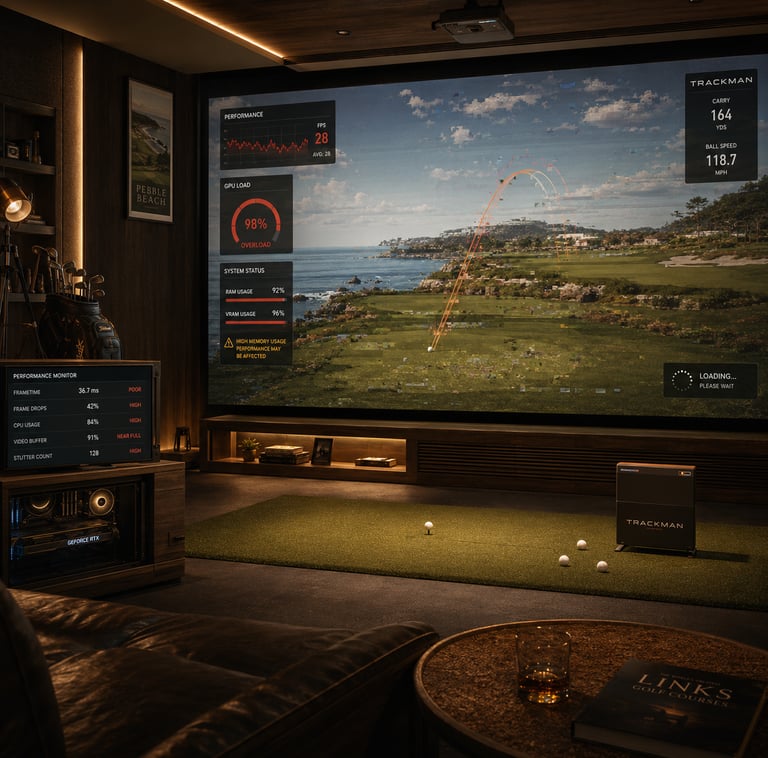
Here’s what that actually means in real use: When your PC isn’t keeping up, the in-game experience suffers in very noticeable ways.
Video Lag and Stuttering: Instead of smooth animation, the course might look choppy or frozen momentarily.
Delayed Input Response: You swing, but the simulator’s reaction to your input comes late or feels uncannily sluggish.
Frame Drops: Frame rates fall below the smooth 30-60 FPS range, making graphics look jerky.
Crashes and Freezes: The software might quit unexpectedly, especially during data-heavy moments like multiplayer or complex holes.
Poor Graphics Quality: To keep the simulator running, your PC might force lower-resolution textures and models, destroying immersion.
How Hardware Components Affect Simulator Performance
Here’s where we break down the tech nerd jargon and get practical.
CPU (Processor): This is the brain calculating everything about your swing, ball trajectory, and game physics. A weak CPU means calculations lag behind, delaying feedback on shots or causing freezing.
GPU (Graphics Processing Unit): Think of this as the artist rendering every blade of virtual grass and cloud in the sky. Most people think RAM alone matters for speed, but without a solid GPU, your image quality tanks and lag ensues.
RAM: This acts like your workshop's desk space—enough room means the software can juggle multiple tasks (graphics, data input, maybe streaming) without bottlenecking.
Storage (SSD vs HDD): Slow storage means longer wait times between shots or course loads. SSDs speed this up considerably.
Drivers and Software Compatibility: Outdated drivers or incompatible OS versions can cause crashes or performance hiccups even on decent machines.
If portability matters for your simulator setup, our Best Laptops for Golf Simulators guide highlights some of the strongest gaming laptops currently available for modern simulator software.
Tips to Improve Performance Without Upgrading Your PC
Not ready to fork out on new parts? That’s totally fine. Here are some practical tweaks you can make:
Lower Graphic Settings: Reducing texture detail, shadows, and resolution can help ease GPU load and reduce lag.
Close Background Applications: Freeing up RAM and CPU cycles by shutting down unnecessary apps improves simulator responsiveness.
Update Drivers and Software: Keeping your GPU drivers and simulator software up to date can fix bugs and optimize performance.
Optimize Power Settings: On laptops or pre-built PCs, ensure power options are set to “high performance” rather than power-saver modes.
Clean Up Storage: Delete unnecessary files to ensure your SSD/HDD isn’t overly fragmented or full, which can slow everything down.
When and How to Upgrade Your PC for Better Simulation
If tweaking settings isn’t cutting it, it might be time for a hardware upgrade. But which piece should you prioritize?
Start with the GPU: If your graphics look like a pixelated mess or you see consistent frame drops, invest here first.
Boost CPU if You Experience Lag in Data or Input Response: A faster processor with multiple cores improves physics and swing data computation.
Add More RAM: Especially if your tasks aren’t running smoothly alongside the simulator.
Switch to an SSD: For instantaneous loading and snappy software startup, this upgrade makes a big difference.
If you’re building around maximum long-term performance and upgradeability, our Best Computers for Golf Simulators guide highlights some of the strongest desktop systems currently available.
Troubleshooting Performance Problems
If your golf simulator randomly crashes or performance tanks unexpectedly:
Check for overheating hardware, especially in cramped or poorly ventilated spaces. Overheated CPUs or GPUs throttle performance to cool down.
Run hardware diagnostics to rule out failing RAM or GPU issues.
Verify that your PC meets the latest simulator software updates and patch notes.
Test with reduced graphic settings to determine if performance is hardware-bound.
Check compatibility of connected peripherals like launch monitors or sensors with your computer.
Real-World Use Cases: Choosing the Right PC Setup
Home Setup: A mid-range gaming PC with a solid GPU, 16GB RAM, and SSD will give you a striking balance of performance and affordability.
Commercial Venue: High-end workstations with multi-core CPUs and premium GPUs are often required for simultaneous multi-player simulations and ultra-realistic graphics.
Portable Use: Gaming laptops with decent specs work but expect to tweak settings for best performance.
Budget Builds: Focus on at least meeting minimum specs and optimize software settings to enjoy simulation without breaking the bank.
If you’re trying to decide between portable systems and full desktop rigs, our The Best Laptops vs Desktops for Golf Simulators guide breaks down the real-world differences in thermals, performance, upgradeability, and long-term value.
Common Mistakes Golf Simulator Enthusiasts Make
Assuming any modern PC is automatically good enough without verifying specific software requirements.
Overlooking the importance of GPU power in favor of just CPU and RAM numbers.
Ignoring storage type, sticking with slow HDDs that cause excruciating load times.
Forgetting to update drivers and simulator software regularly.
Buying PCs incompatible with the operating system version needed by their simulator.
Setting up in tight, poorly ventilated spaces leading to overheating and throttling.
FAQ
What are the minimum and recommended PC specs for popular golf simulator software?
Each software has its own list, but a good rule of thumb is a quad-core CPU, 8-16GB RAM, mid-to-high end GPU (like NVIDIA GTX 1060 or better), and an SSD.
How does a weak PC affect my golf simulator experience?
You’ll notice laggy graphics, delayed swing response, frequent crashes, and poor visual fidelity—all detracting from immersion and enjoyment.
Can I improve performance by adjusting software settings without upgrading hardware?
Absolutely. Lowering graphics quality and shutting background apps can help reduce lag dramatically.
What hardware components most impact simulator performance?
GPU and CPU matter most, followed by sufficient RAM and fast SSD storage.
How can I check if my PC is compatible with my golf simulator software?
Compare your PC specs against the software’s minimum and recommended specs listed on their website or manuals.
Why does my golf simulator video lag or stutter?
Often because your GPU can’t render frames quickly enough or your CPU is falling behind in calculation tasks.
Are there specific brands or models of PCs better suited for golf simulators?
Gaming-focused desktops and laptops from brands like ASUS, Dell Alienware, or MSI usually come optimized for performance needed in simulators.
What are common troubleshooting steps if my simulator crashes frequently?
Check hardware temps for overheating, update drivers/software, reduce graphics settings, and ensure your PC meets minimum requirements.
Conclusion
Running a golf simulator is like setting up your very own indoor golf course replete with tech wizardry—but it demands a PC that’s up to the task. The reality is, if your computer isn’t powerful enough, the experience quickly deteriorates from fun to frustrating. Laggy graphics, input delays, and crashes aren’t just annoying; they stop you from improving your game and enjoying the simulation fully.
But don’t panic—knowing your PC’s requirements and how the hardware fits together gives you the power to make smart upgrades or adjustments. Whether that means tweaking settings to squeeze more from your current setup or investing in a serious gaming rig, being informed prevents costly mistakes and ensures your golf simulator truly shines.
So remember: let me overthink your golf simulator PC needs, so you can focus on that perfect swing indoors without tech interruptions. After all, the right specs aren’t just numbers—they’re what make your virtual golf game feel as satisfying as a hole-in-one.
© 2026 GolfTechBuzz. All rights reserved.
Golf Tech Buzz
Performance Through Data
Practical guides, real-world setups, and unbiased comparisons for golfers building smarter practice environments.
General Inquiries: